On iPhone or iPad
Open VocabForge in Safari, tap Share, choose Add to Home Screen, leave Open as Web App on if shown, then tap Add.

 VocabForge by Mintysoft
Installable web app for phone, tablet and computer
VocabForge is an AI-powered web app—not an App Store download. Open it in your browser and, on iPhone or Android, add it to your Home Screen so it opens like an app. It works just as well on a laptop or desktop computer.
Keep it on your Home Screen
VocabForge opens from the web, but you can save it to your phone’s Home Screen. You will get a VocabForge icon you can tap whenever you want to study, and it opens in its own app-style window.
Choose the option that matches your device.
Open VocabForge in Safari, tap Share, choose Add to Home Screen, leave Open as Web App on if shown, then tap Add.
Open VocabForge in Chrome, then choose Install app or Add to Home screen when offered. You can also find it in Chrome’s menu.
VocabForgeIllustration of VocabForge saved alongside your usual phone apps.
Animated installation guide
Choose iPhone or Android and watch the complete process—from opening the web app to finding its icon on your Home Screen.
What it does
Choose a subject and let VocabForge produce a ready-to-study set of flashcards automatically.
Already know what you need to study? Enter your chosen words and generate cards around them.
Create cards in any combination of English, Brazilian Portuguese, European Portuguese, French, German, Spanish and Dutch.
How it works
Tell VocabForge what you want to learn, or provide the exact words you want included.
Choose the language—or language combination—that suits what you are studying.
Review the generated cards wherever you have a web browser.
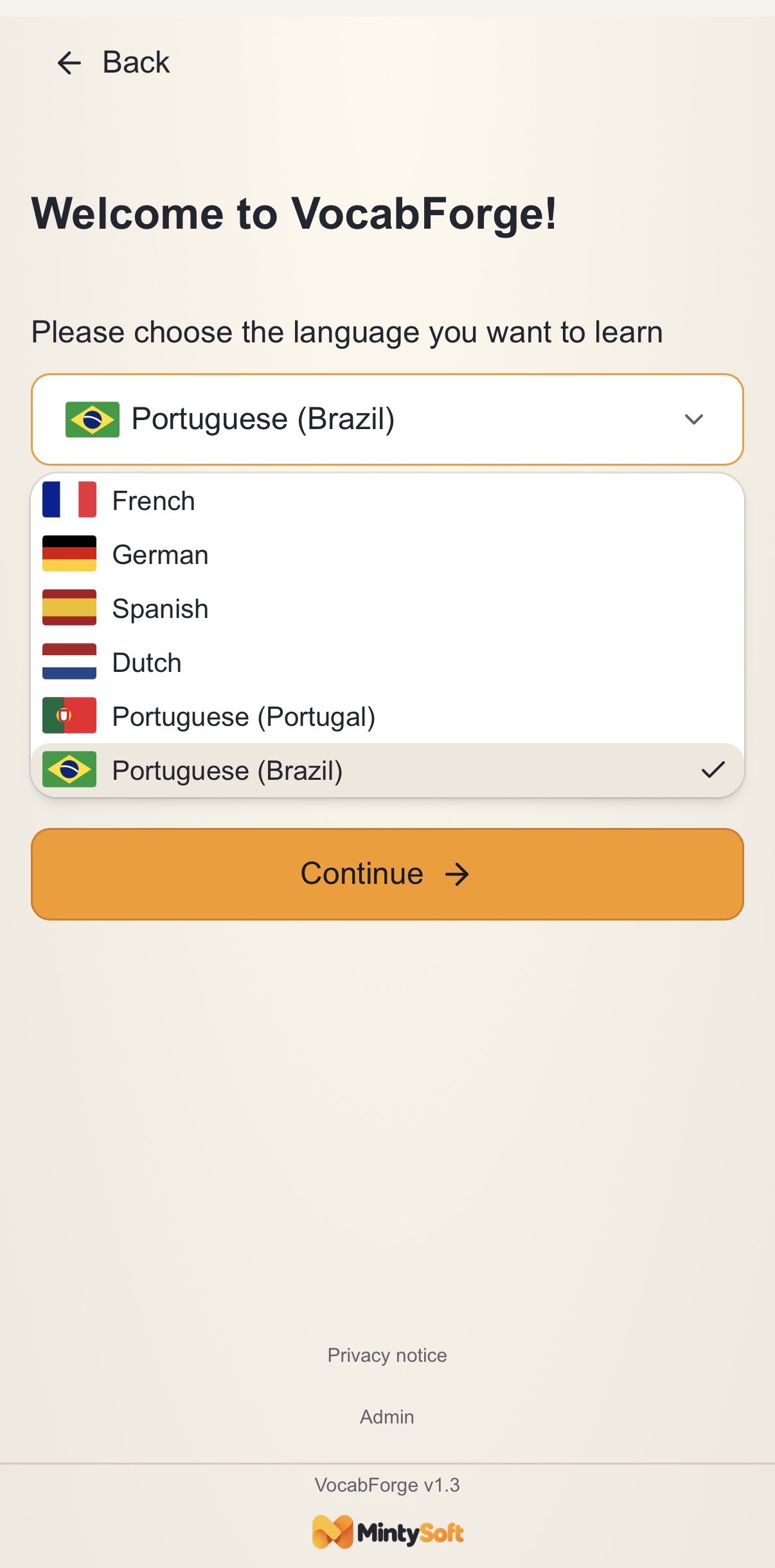
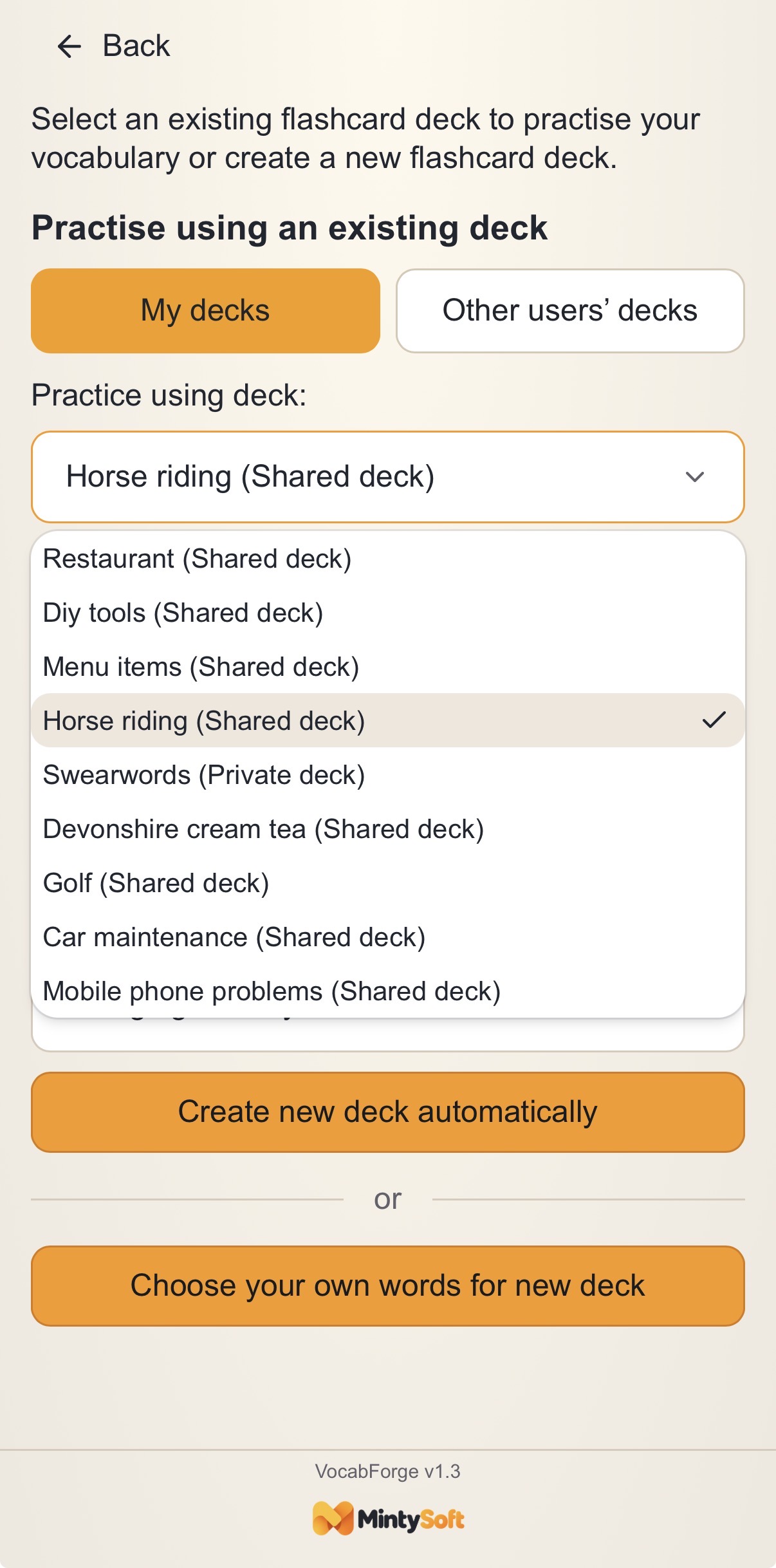
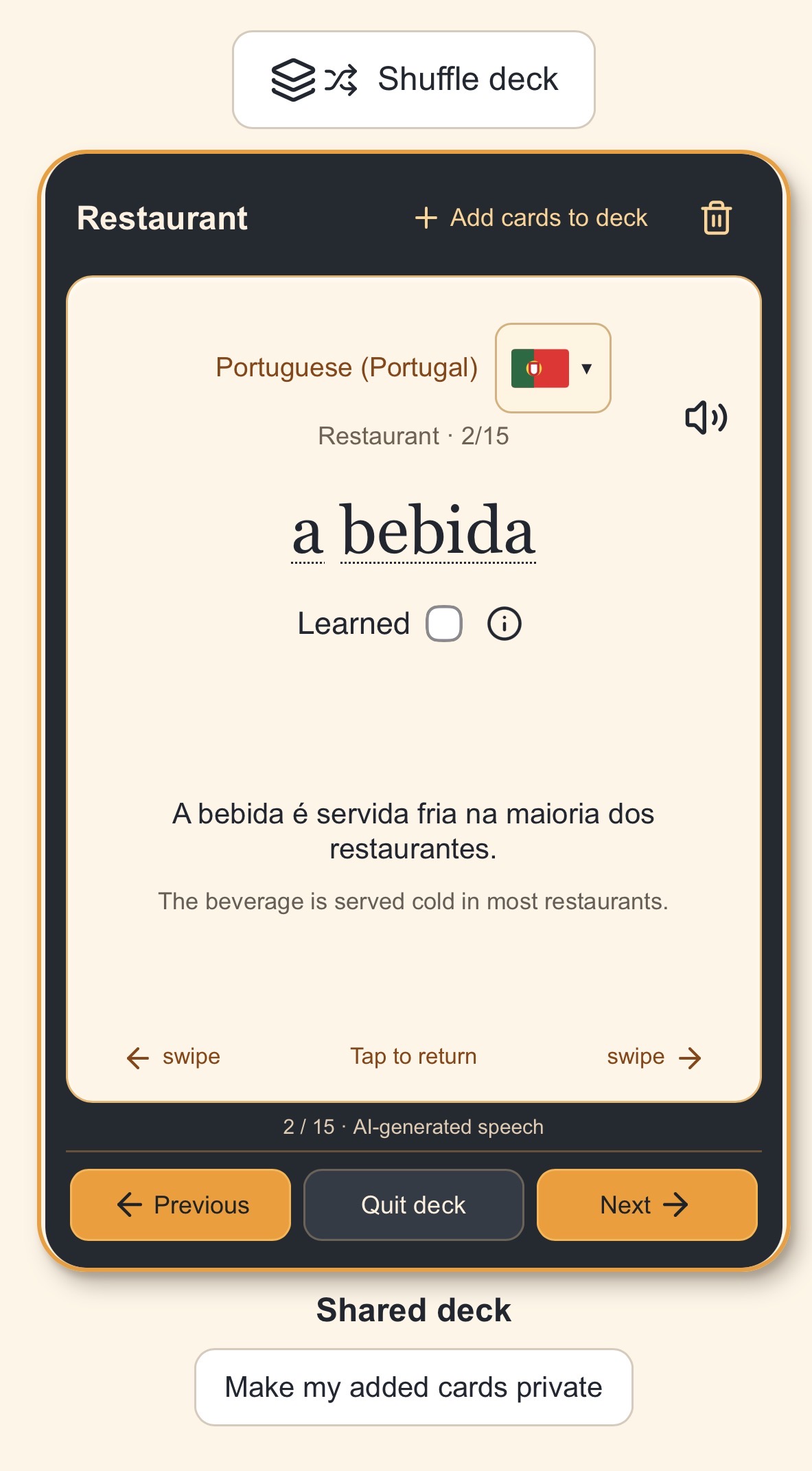
App preview
Choose what to learn, create or select a deck, then practise with clear multilingual flashcards on your phone, tablet or computer.
Frequently asked questions
Yes. VocabForge is currently free to use.
No. VocabForge is a web app. Open it in Safari, Chrome or another modern browser; on a phone, you can then add it to your Home Screen so it opens and feels like an app.
On iPhone or iPad, open it in Safari, tap Share, choose Add to Home Screen, leave Open as Web App on if shown, then tap Add. On Android, open it in Chrome and choose Install app or Add to Home screen when offered, or use the same option in Chrome’s menu.
Yes. You can enter your own words, or ask VocabForge to generate a complete set from a subject.
English, Brazilian Portuguese, European Portuguese, French, German, Spanish and Dutch can be used in any combination.
No. VocabForge can generate flashcards for almost any subject you choose.
Explore the rest of the collection.
Open VocabForge on your phone or computer. Add it to your Home Screen if you want an app icon.